

Add charges in custom currency
1
Open the plan
Product Catalog → Plans → select a plan (e.g. Pro).
2
Add charges
In the Charges section click + Add (or Edit then add charges). You’ll see Add Charges to [plan].
3
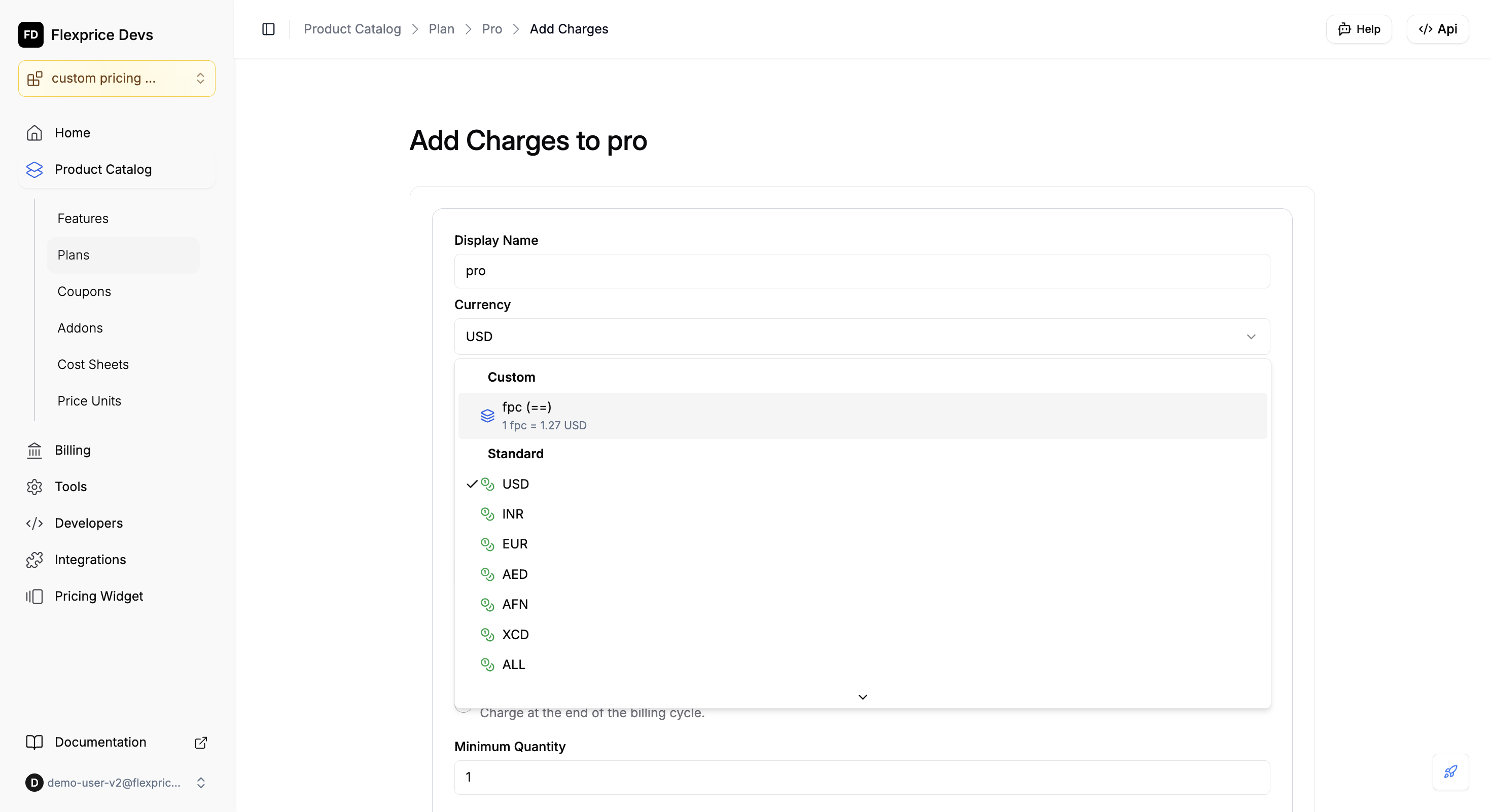
Select custom currency
In the Currency dropdown choose Custom, then select your price unit (e.g. fpc (==) — 1 fpc = 1.27 USD). Standard options (USD, INR, etc.) stay under Standard.
4
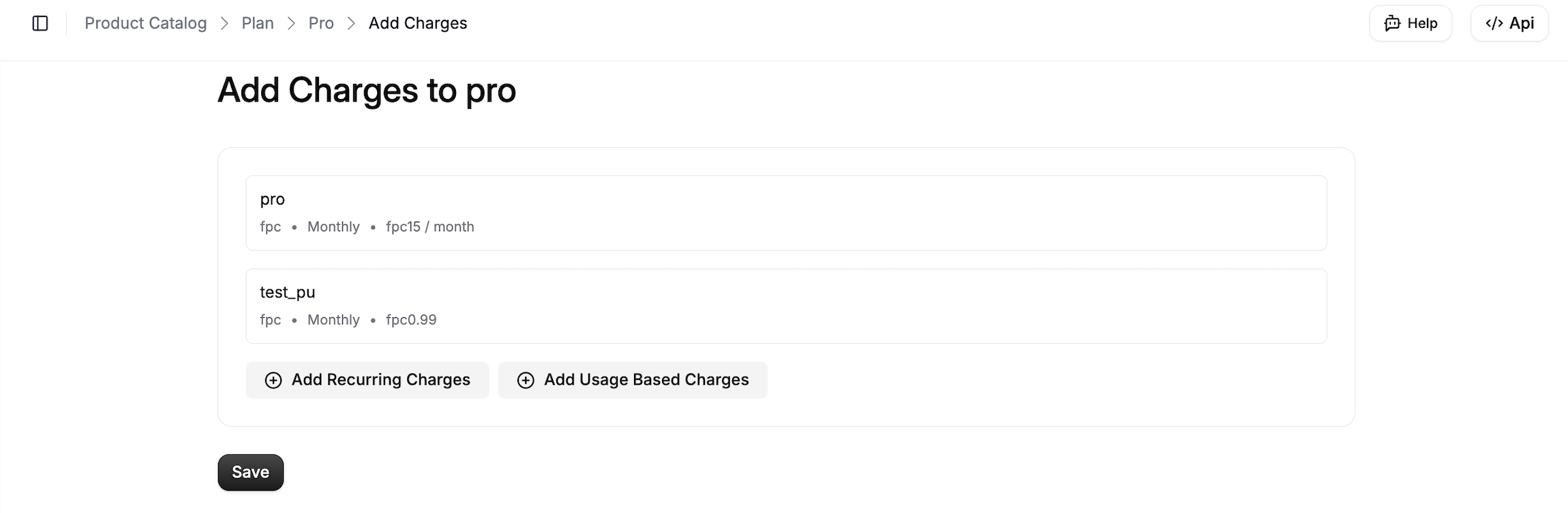
Add recurring or usage-based charge
Add Recurring Charges — fixed amount per period (e.g. 15 fpc/month). Add Usage Based Charges — charge by usage in the custom unit. Set Display Name for the charge (e.g. feature name). Enter the value in the custom unit.
Use custom currency in plans and prices
You can add charges from the dashboard (see above) or create prices via the API below. In both cases you choose your Price Unit and enter amounts in that unit; Flexprice converts to base currency for billing.API
1
Set the price to use your unit
In the create-price request (
POST /v1/prices), set price_unit_type to CUSTOM and include price_unit_config.2
Set price_unit and amount or tiers
In price_unit_config set price_unit (your unit’s code, e.g.
CRD). For a fixed amount use amount; for tiered pricing use price_unit_tiers only (not the top-level tiers field).FIXED), billing_cadence (e.g. RECURRING), and invoice_cadence (e.g. ADVANCE or ARREAR). Below shows the custom-pricing–relevant fields:
conversion_rate = "0.01", 100 CRD = 1.00 USD. Flexprice stores both the custom amount and the base-currency amount and uses base currency for billing.
Billing models
For more on fields and endpoints, see the API Reference and Price Unit.
Create Wallet using custom pricing unit
For a wallet that uses a custom price unit, Flexprice does not perform any conversion at wallet creation: it uses the price unit’s conversion rate as-is. If you pass conversion_rate in the create-wallet API request, it is ignored when price_unit is provided; the price unit’s conversion rate is always used. The wallet’s currency and conversion rate come only from the selected price unit.1
Open the customer
Go to Customers → select the customer → open the Wallets tab (or the section where you manage wallets).
2
Create a new wallet
Click + Add or Create Wallet to open the Create Wallet dialog.
3
Choose custom currency
In the Currency dropdown, choose Custom (not Standard), then select your price unit (e.g. fpc (==) or CRD (¢)). Standard options (USD, INR, etc.) are listed under Standard.
4
Confirm currency and conversion
When you select a custom price unit, Currency and Conversion rate are set automatically from that unit’s base currency and conversion rate. You don’t need to enter them manually. Optional: set Initial credits to load, Wallet type (Pre-Paid / Post-Paid), or Alert settings.
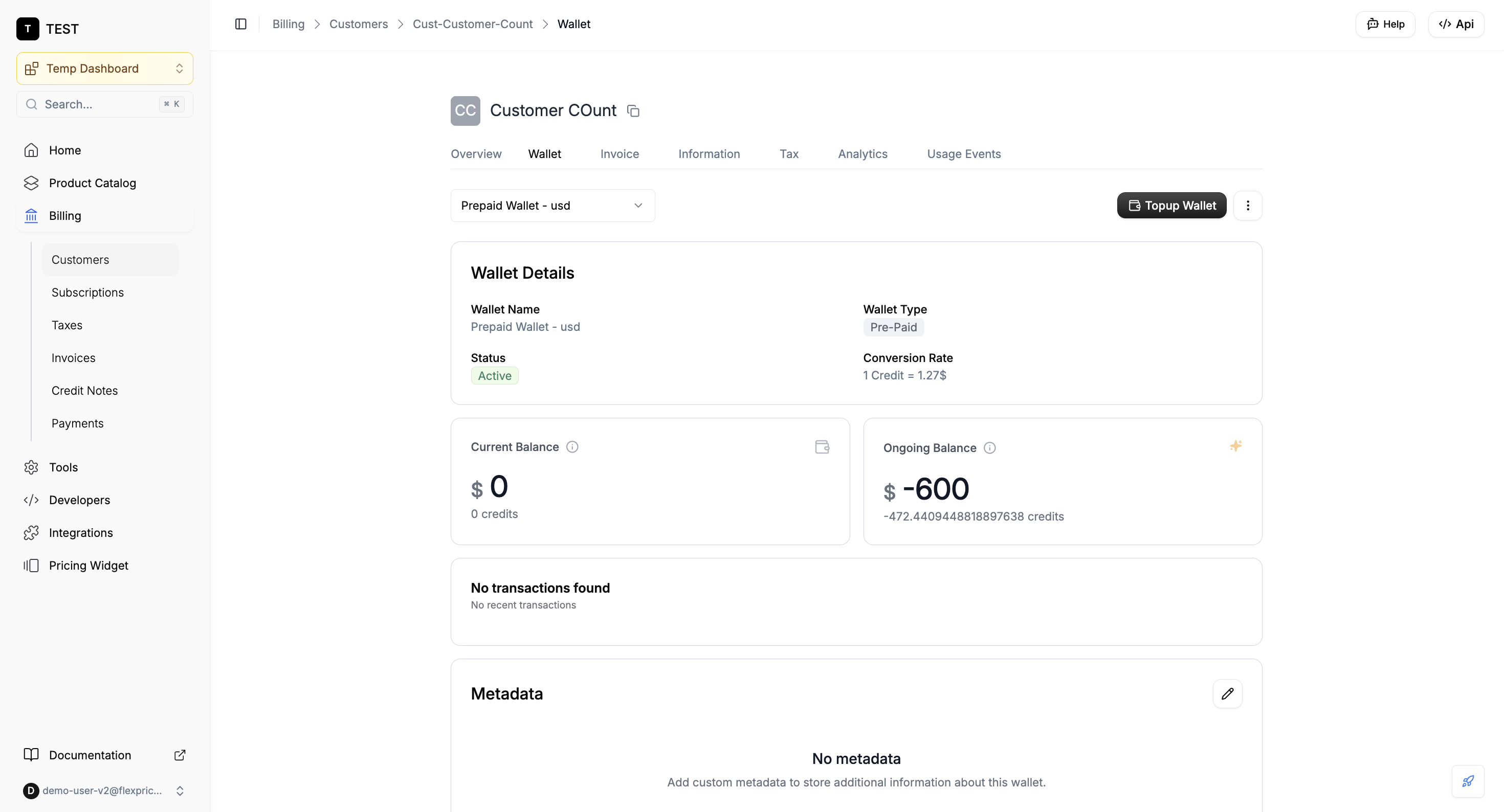
fpc or CRD) in the request body. Flexprice sets the wallet’s currency to the price unit’s base currency and its conversion rate from the price unit. The price unit must be Active; otherwise the request fails validation.
Summary
- Create a price unit first (Product Catalog → Price Units) with a conversion rate to base currency, and ensure it’s Active.
- Use it in a plan: open the plan → Charges → + Add → Currency → Custom → select your unit → add recurring or usage-based charges → Save.
- Use it in a wallet: open the customer → Wallets → Create Wallet → Currency → Custom → select your unit → create. Balance is always shown in base currency and credits only, irrespective of whether the wallet was created with fiat currency or a price unit.